
DOCS / User guide
Start acceleration
Select a service and target, start acceleration, copy an entrance address, change IP, and stop the service.
Open the Acceleration page in the User Center. Select a service and a target server to get the entrance addresses for this session. Service status, prices, and route information appear in real time.
The screenshots on this page show the Chinese interface. The User Center also supports English.
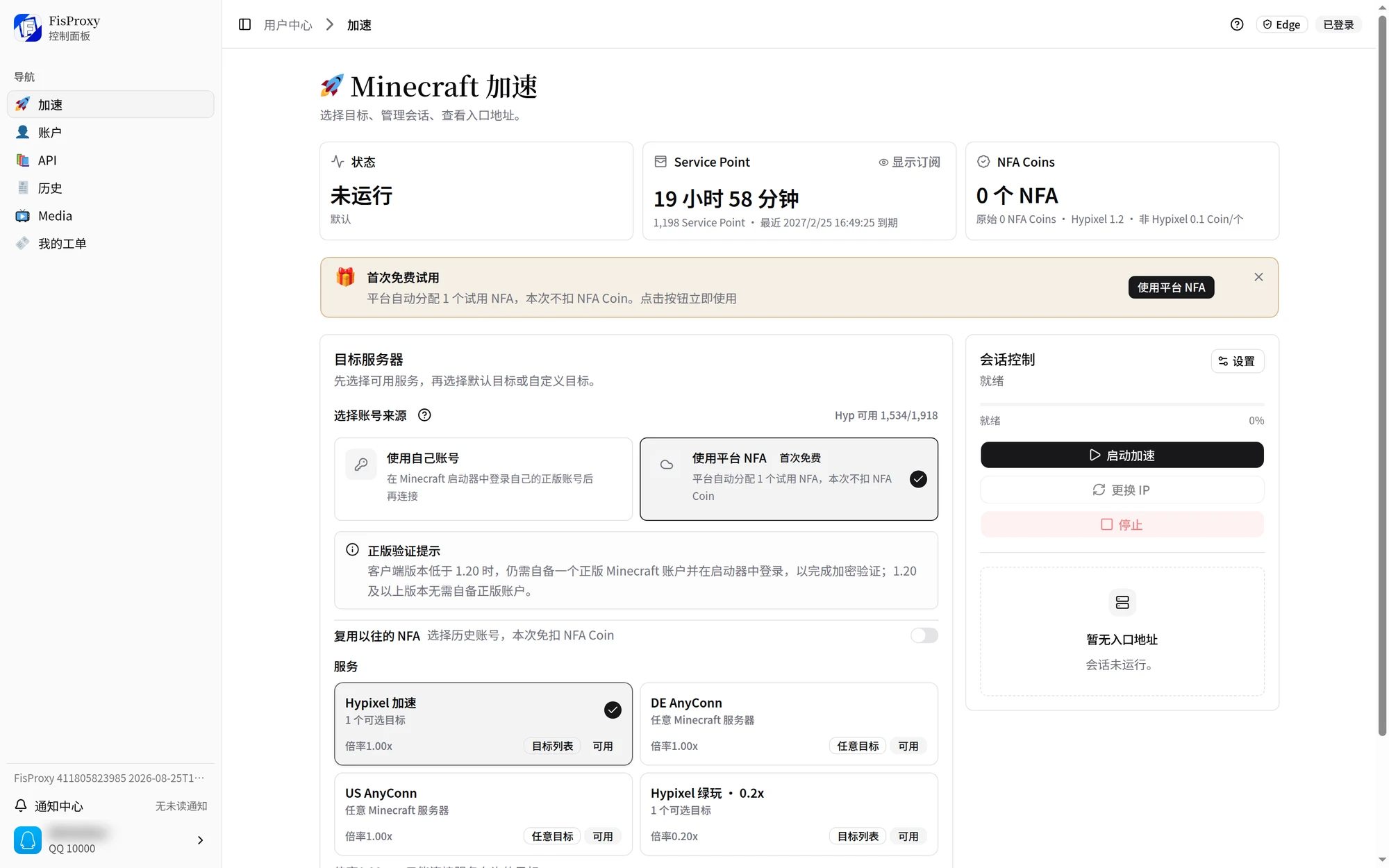
Before you start
- Sign in to the User Center.
- Have an eligible subscription, or enough Service Point balance, for the selected service.
- When you use platform AutoNFA, make sure the page shows available stock, and you have a free first-use trial or enough NFA Coin.
- Use a Minecraft client that meets the version requirement for the selected account source.
For billing details, see Subscriptions, pay-as-you-go, and NFA Coin.
1. Select a service
The service list shows the services that your account can use, with the multiplier, the target type, and availability. An unavailable service states the reason directly, such as no subscription or not enough balance.
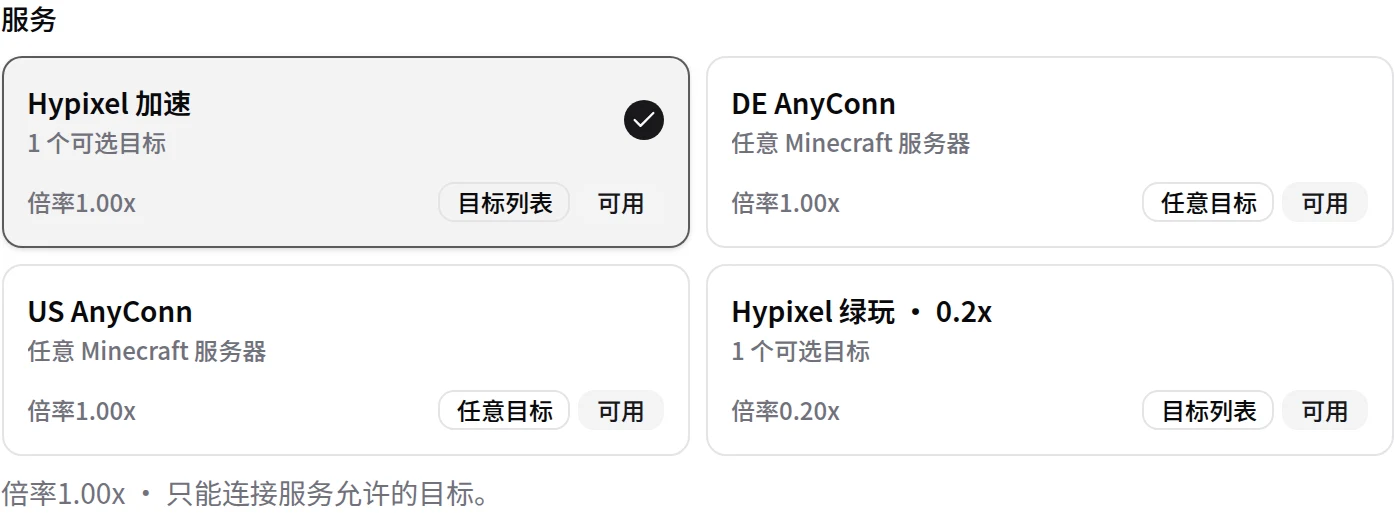
- Target list: You can connect only to targets that the service allows. Select one from the list.
- Any target: You can enter a custom
hostorhost:port, such asplay.example.net:25565. If you do not enter a port,25565is used.
Available services and targets can change with operations. The options that the page shows are available now.
2. Select a target
In the target area, select the server to connect to, or enter a custom address.

3. Select an account source
The account source area gives two methods and a reuse switch:
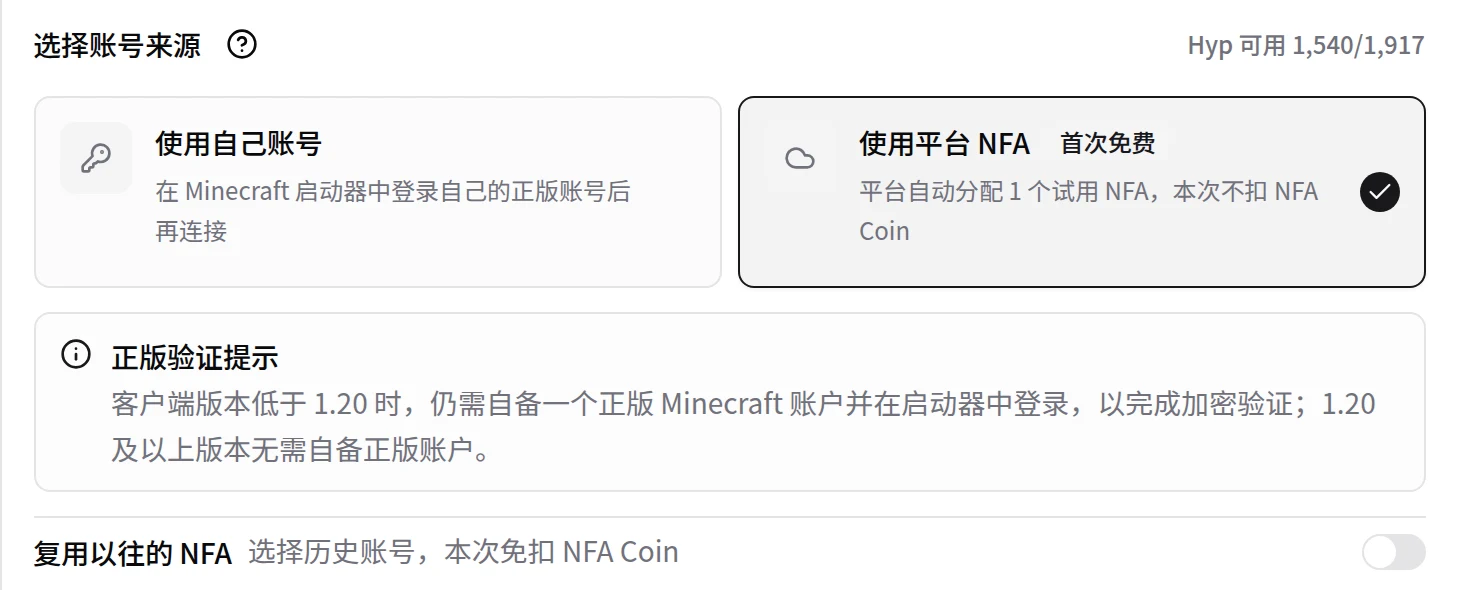
- Your own account: First sign in to your own purchased account in the Minecraft launcher, then connect. No NFA Coin is deducted.
- Platform NFA: FisProxy prepares an NFA for this connection. The first use is free. After that, the page shows the cost.
- Reuse a previous NFA: Turn on the switch to use a previous NFA that is not banned and remains available. This session does not deduct NFA Coin.
Not every service offers platform AutoNFA. See Platform AutoNFA for the free first use, the free quota for non-Hypixel servers, and client version requirements.
4. Start and wait for completion
Select Start. The page prepares the account and route, and shows the progress.
Wait until the page reports a successful start
While the progress is incomplete, the route is still being prepared. Join the game only after the page shows the running state and entrance addresses. Selecting Start repeatedly does not make the process faster.
Billing starts only after the route becomes active. The final result and usage records appear on the History page.
5. Copy an entrance address and join the game
After the start succeeds, the session control panel lists entrance addresses by region. Copy one entrance address. In Minecraft Java Edition, add it as a server address.
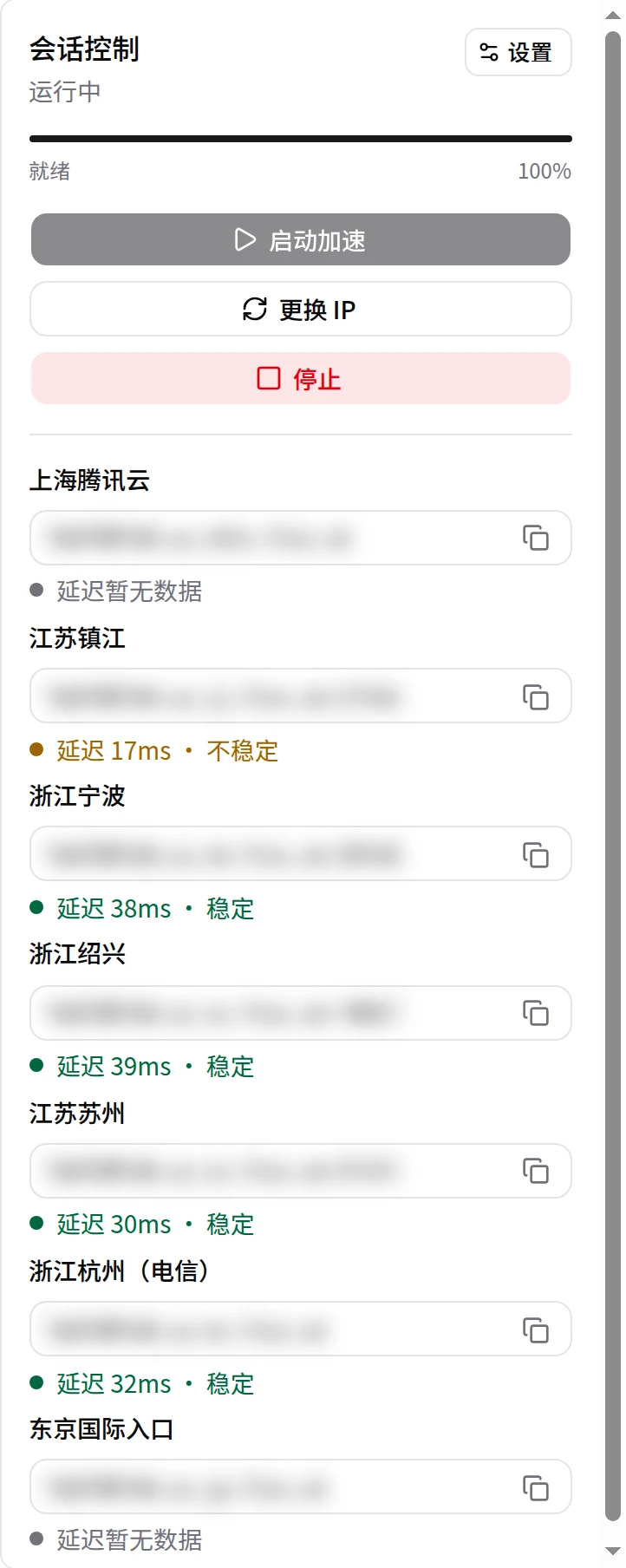
- Always use an entrance address from the current session.
- After you change IP or start again, copy the newest address.
- Your entrance address is for you only. Do not share it.
Latency and stability of an entrance
Below each entrance, the page can show stable, unstable, or no data. This reflects recent route performance from the FisProxy entrance to the target server. Use it to compare entrances, but do not treat it as the complete latency between your computer and the server.
Your ISP, location, and play time also affect the actual experience. It is normal for some entrances to show the same data. No data does not mean that an entrance is unavailable.
Change IP
To change routes, select Change IP in the running session:
- Submit the operation and monitor the page progress.
- Wait until the page confirms that the new route is active.
- Copy the entrance address again, then reconnect to the game.
An IP change also needs confirmation. Until the page reports completion, do not treat a received request as a completed change. If the session needs a new platform NFA, the page also shows the matching free trial, free quota, or NFA Coin cost.
Stop after you finish playing
When you no longer play, select Stop to end billing. Leaving a Minecraft server does not stop acceleration immediately.
| Current state | What FisProxy does | Suggested action |
|---|---|---|
| You select Stop | Stops acceleration and billing immediately | Stop it after play. |
| You leave a server for about 10 minutes | Reminds you that you have not reconnected | Stop it if you no longer play. |
| You leave a server for about 20 minutes | Stops acceleration automatically | The wait can still be billed. Do not use it as pause. |
| You never join about 35 minutes after starting | Stops acceleration automatically | Check the message or stop manually if connection fails. |
For two minutes after you successfully join a server and billing starts, you may not be able to stop the service. If the page says that billing cannot stop within two minutes, try again later.
Recommended habit
Stop the service after each play session. Then check the end time and charge on the History page.
Personal connection settings
The settings entry in session control can offer options such as IRC chat and scoreboard display. After you save, supported options apply to the current session. The page is the source of truth for available functions.
Connection problem?
Record the page status, operation time, service, and target. Then follow Troubleshooting step by step. When you ask for help, do not publicly disclose your full entrance address, password, or verification code.
NEXT / KEEP EXPLORING
Continue to explore.