
DOCS / User guide
User Center and sign-in
Learn about the FisProxy User Center, select a sign-in method, and find common functions quickly.
Manage FisProxy from one page.
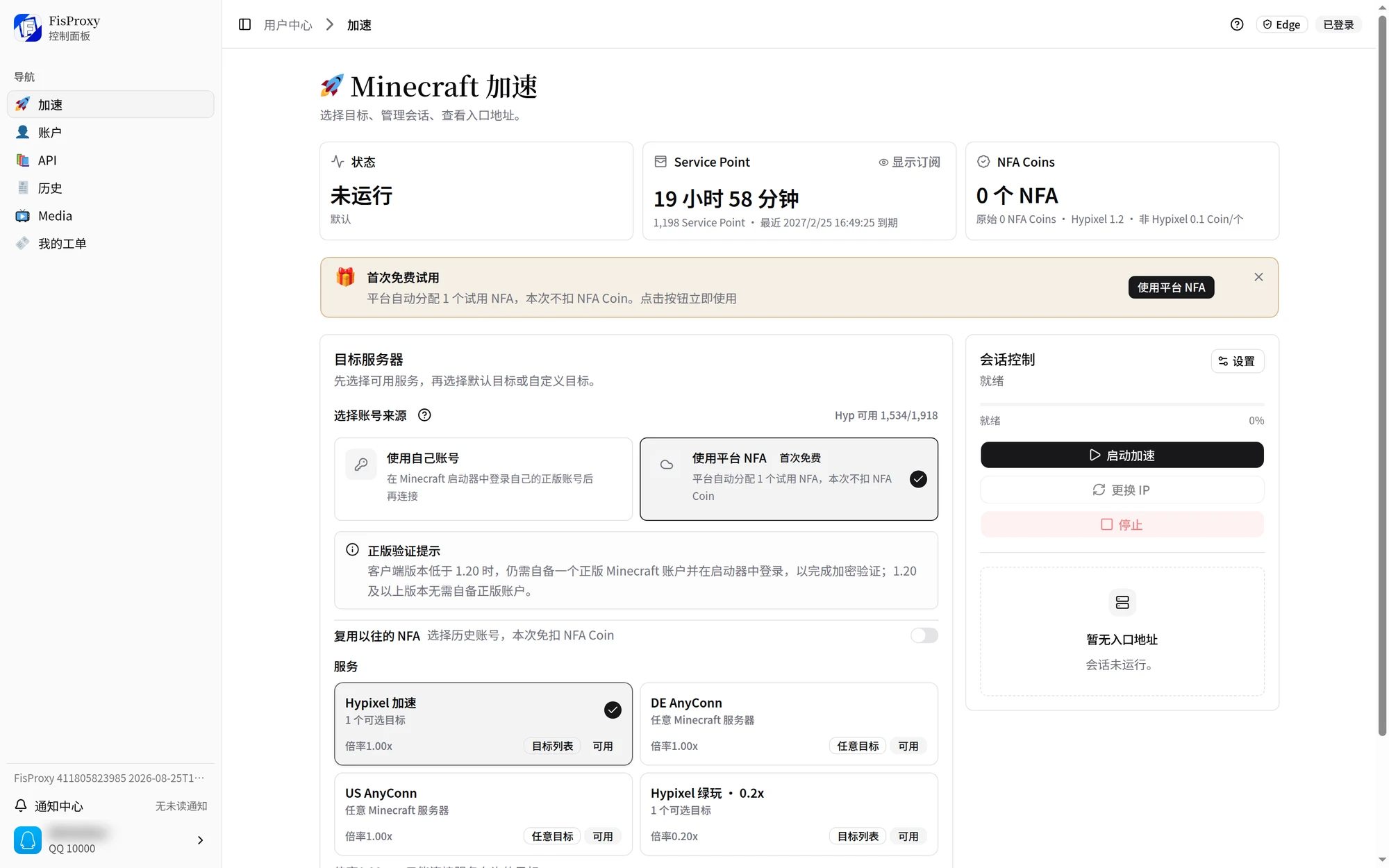
The FisProxy User Center is the main entry point. Acceleration, balances, history, security settings, and tickets are all here. You do not need to remember bot commands.
The screenshots on this page show the Chinese interface. The User Center also supports English.
QQ code sign-in
For your first use, QQ code sign-in is the fastest method:
- On the sign-in page, select the QQ code tab, then select Get code. The page generates a six-digit code that is valid for five minutes.
- Before the code expires, send this message to the official bot in a private chat:
/login <code>- Keep the sign-in page open. After verification succeeds, the page enters the User Center.
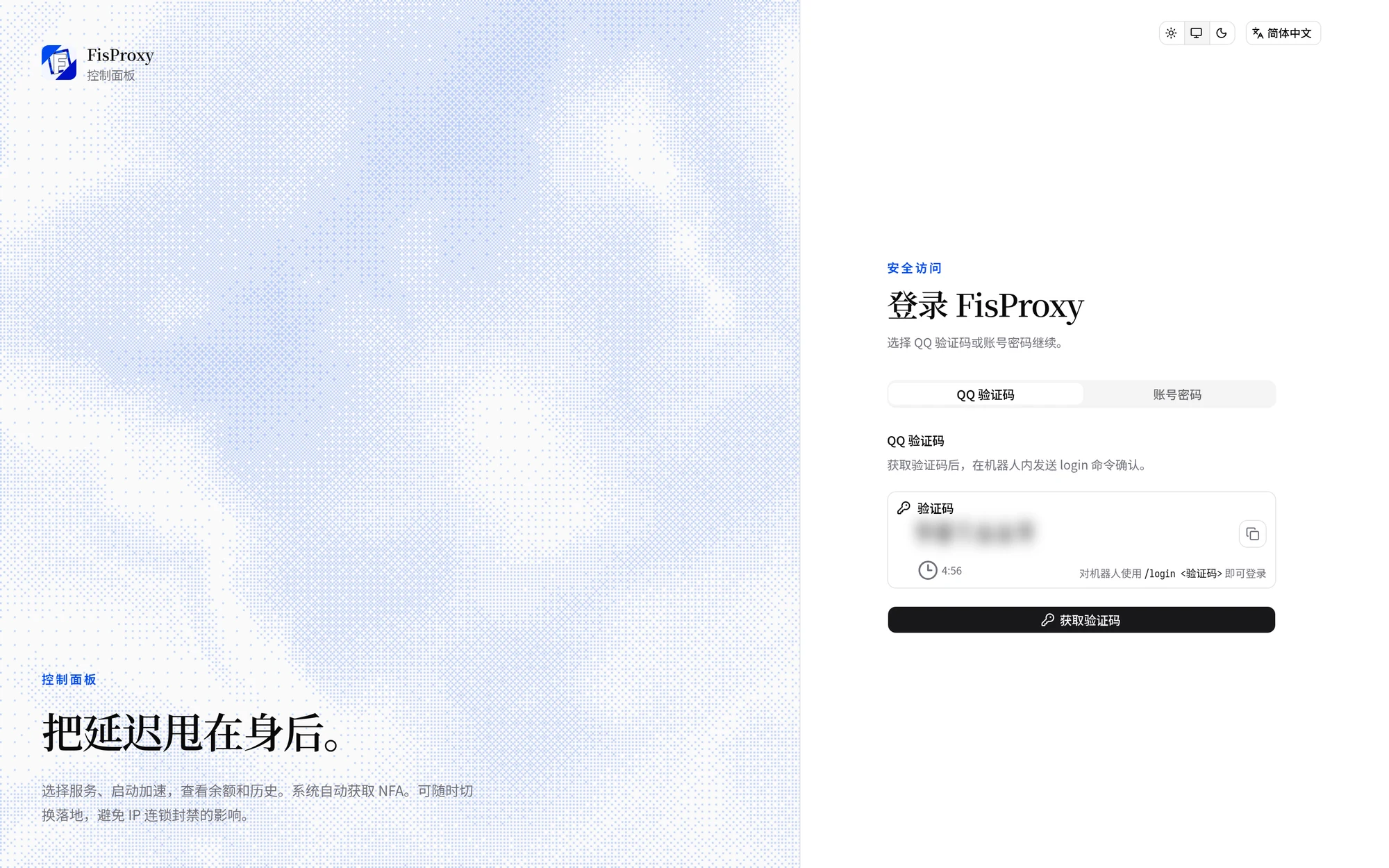
You do not enter a QQ number on the page. The QQ account that sends the command is the sign-in account. The code is for you only. Do not forward it or ask someone else to send it.
Password sign-in
After you set account details, switch to the password tab. Sign in with your username or email address and your password. Usernames have 3 to 24 letters, digits, or underscores.
Complete the browser verification before you sign in. Select the verification box, wait until it reports success, then select Sign in.
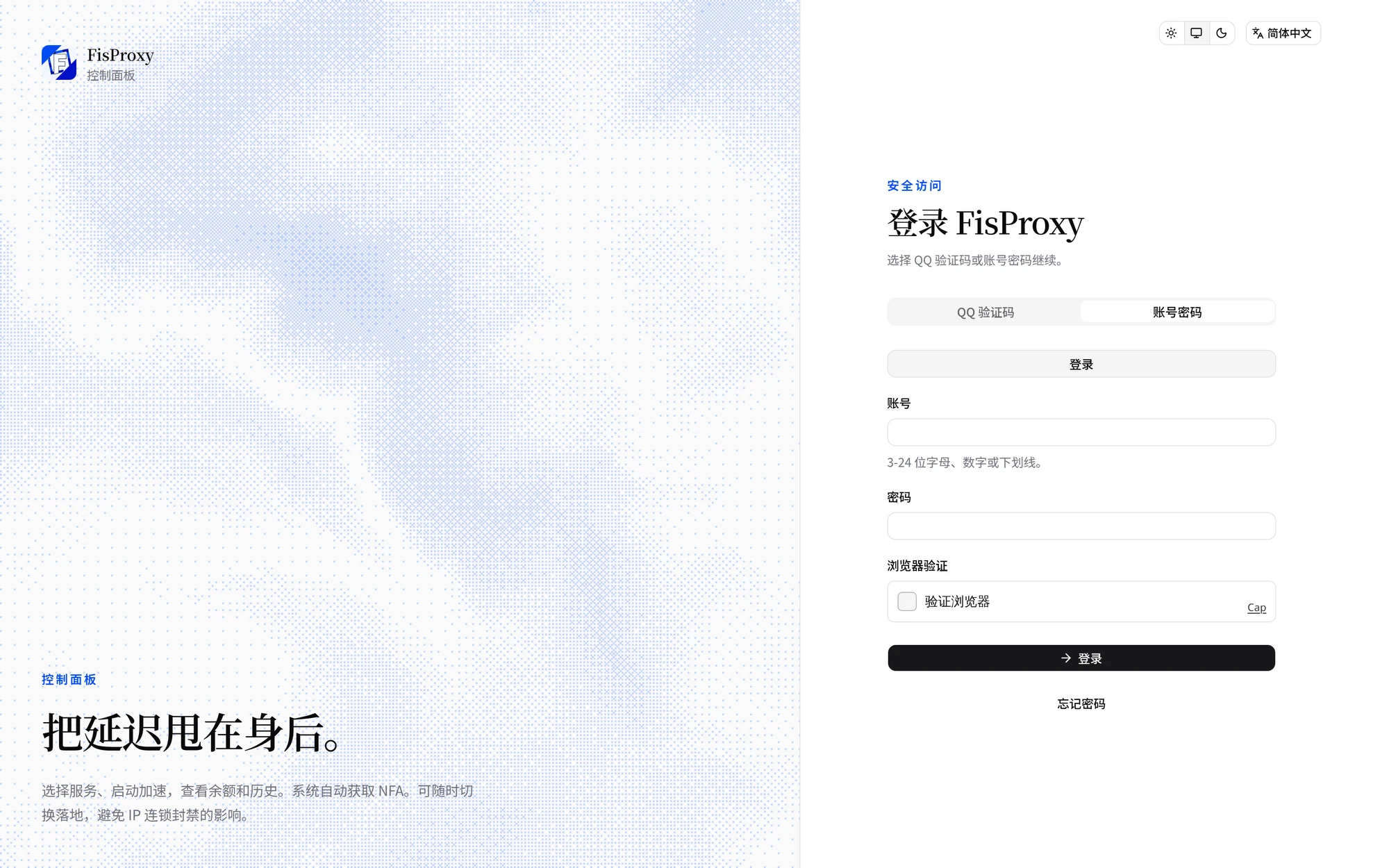
The registration entry point depends on the current availability. If the page does not show registration, use QQ code sign-in first, then complete your account details.
What if I forget my password?
If your account has a verified numeric QQ number, reset your password on the sign-in page:
- On the password tab, select Forgot password.
- Enter the bound QQ number, then select Get code.
- Send
/login <code>to the official bot in a private chat. - After verification, enter a new password and select Reset password. Passwords have at least eight characters.
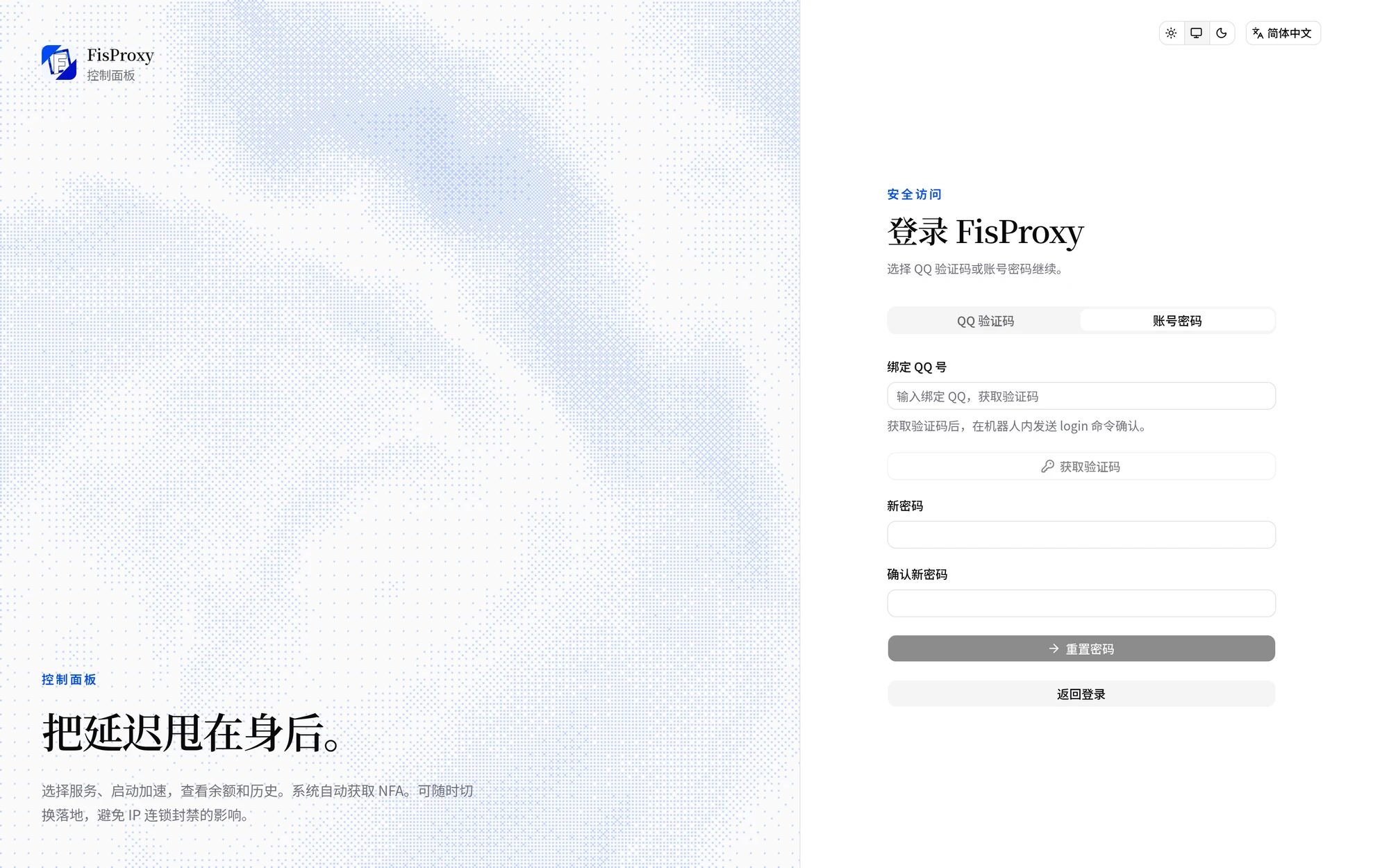
If you have not verified QQ, or no longer control the original QQ account, contact us. Do not create a duplicate account.
Sign in faster with a passkey
A passkey lets you enter the User Center with device fingerprint, face recognition, or system unlock. It is an extra sign-in method. The account still needs a password.
First sign in with QQ or a password. Then add a passkey on the Account page. See Account and security for the steps.
What can I do after sign-in?
| Page | Purpose |
|---|---|
| Acceleration | Select a service, target, and account source. Start, change IP, stop, and copy entrance addresses. |
| Account | View balances, redeem codes, top up NFA Coin, and manage bindings, passwords, passkeys, and skin preferences. |
| API | Create API tokens and call the session API from scripts. |
| History | Query operation, acceleration, and balance records. Filter by keyword, type, and time. |
| Media | Bind Bilibili, submit videos, and view review progress and rewards. |
| My Tickets | Submit problems with the template, and view progress and replies. |
For details, see Start acceleration, Account and security, and Media program. When you contact support, give the matching time and record from the History page. This helps us find the problem faster.
The three-step guide on the first visit
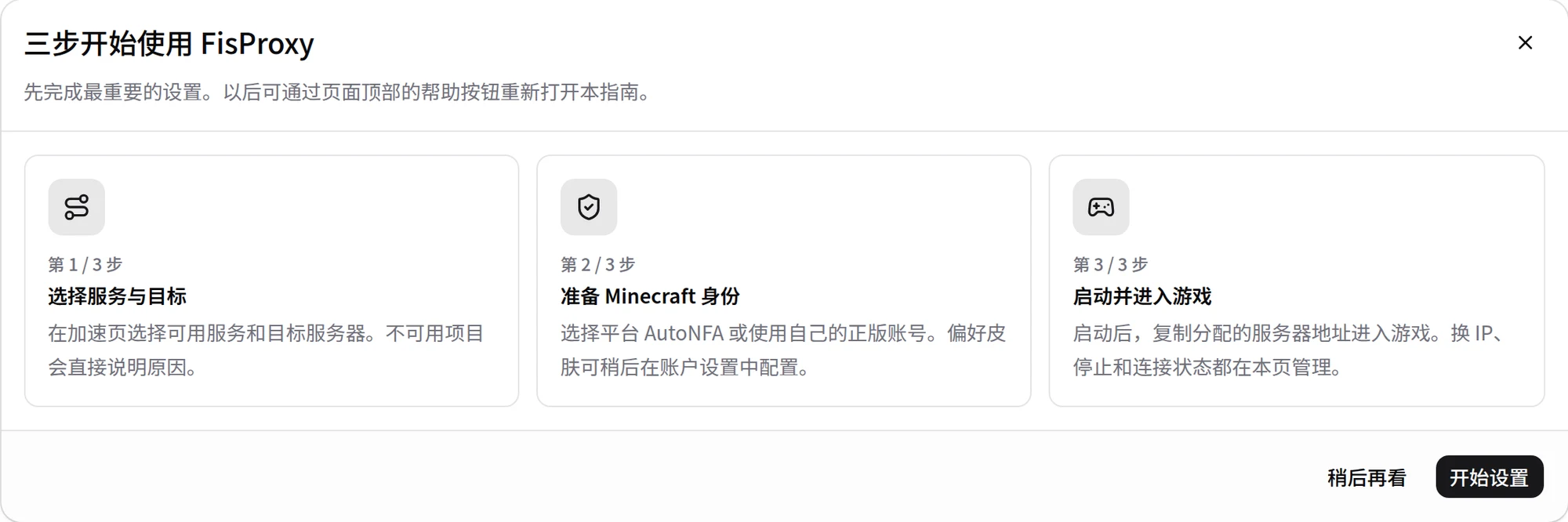
When you open the Acceleration page for the first time, it shows a three-step guide: select a service and target, prepare a Minecraft identity, and start and join the game. You can reopen it later with the help button at the top of the page.
Announcements and maintenance
Important announcements can appear after sign-in. The Acceleration page also has an announcement entry. These messages show ongoing or planned maintenance. If starting, IP changes, or connections are temporarily abnormal, read the latest announcements first.
Select a language or install the site
The User Center supports Simplified Chinese, Traditional Chinese, Japanese, and English. Switch the language in the top-right corner. If your browser shows an install button, you can install the site on a desktop or mobile home screen. The web and installed versions use the same account and receive the same updates.
Next steps
- For your first connection, see Quick start for new users.
- To complete sign-in and bindings, see Account and security.
- If a page action fails, see Troubleshooting.
NEXT / KEEP EXPLORING
Continue to explore.