
DOCS / User guide
Quick start for new users
Sign in to the FisProxy User Center, redeem balance, and complete your first Minecraft accelerated connection.
Complete your first connection in five steps.
You can complete every FisProxy operation in the User Center. The page shows available services, target servers, prices, and entrance addresses in real time. Follow the steps on this page.
The screenshots on this page show the Chinese interface. The User Center also supports English.
Prepare these items
- An account that can sign in to FisProxy.
- A redeem code, or an active subscription or Service Point balance.
- Minecraft Java Edition.
Security reminder
Passwords, verification codes, redeem codes, and NFA information belong only to you. Do not send them to anyone. Your entrance address is for you only. Do not share it publicly. For diagnosis, submit a ticket in My Tickets in the User Center, or create a private KOOK ticket.
Step 1: Sign in to the User Center
For your first use, QQ code sign-in is the fastest method:
- Open web.fisproxy.org.
- Select the QQ code tab, then select Get code. The page generates a six-digit code that is valid for five minutes.
- Before the code expires, send this message to the official bot from your QQ in a private chat:
/login <code>- Keep the page open. After verification succeeds, the page enters the User Center.
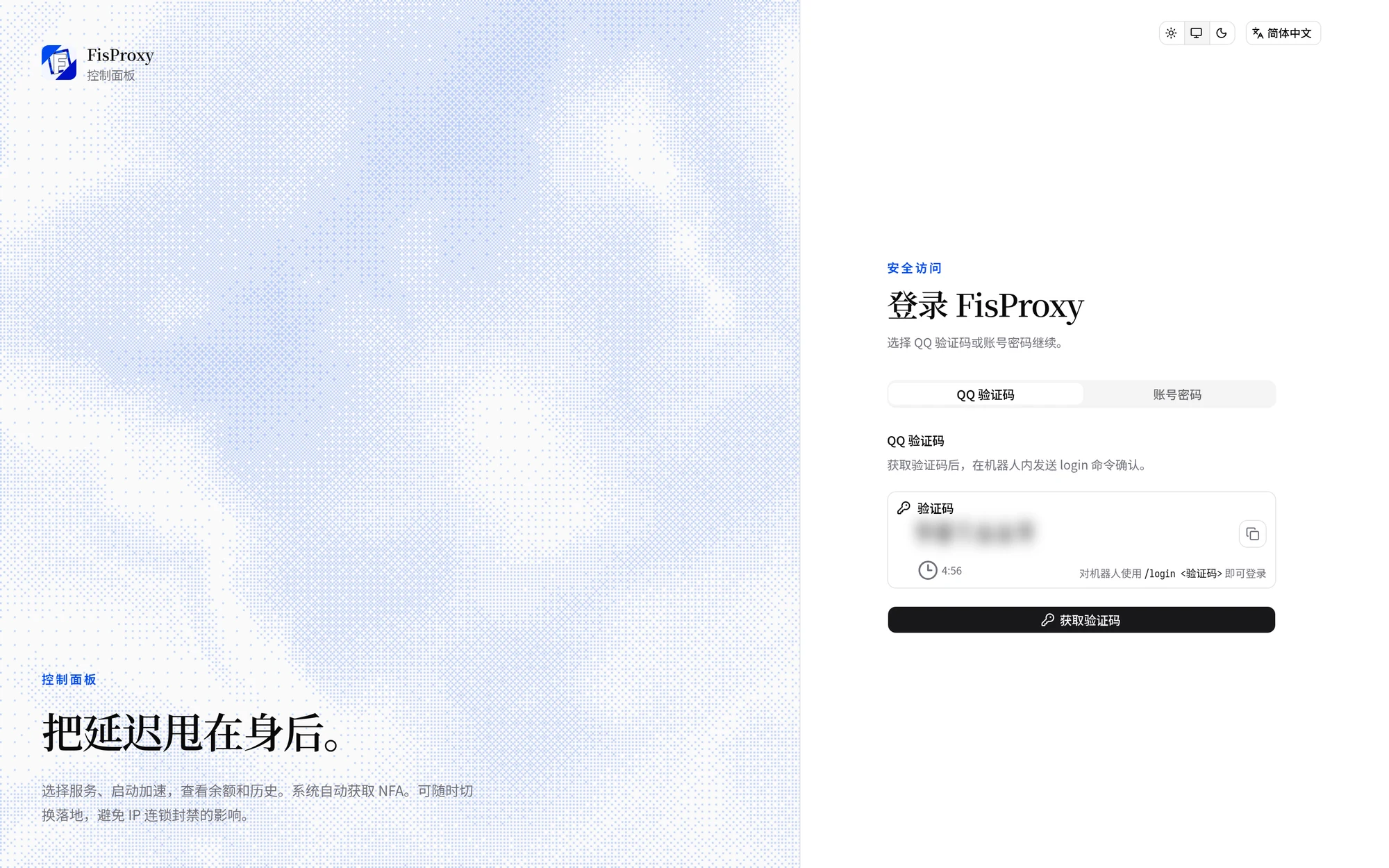
You do not enter a QQ number on the page. The system identifies the QQ account that sends the command. The code is for you only. Do not forward it.
If you already set a username and password, switch to the password tab to sign in. If you added a passkey, you can also sign in with device fingerprint, face recognition, or system unlock. See User Center and sign-in for all methods.
Expected result: The page shows the Acceleration page with a navigation sidebar on the left.
If you cannot sign in, follow Troubleshooting.
Step 2: Complete your account details
If your account details are incomplete, the page asks you to set a username, email address, and password. After you do this once, you can sign in with a password and recover your account more easily.
On the Account page, you can also verify a numeric QQ number, or bind QQ, KOOK, Discord, Telegram, and other platforms to one FisProxy account. See Account and security.
Step 3: Redeem or top up
- Open the Account page from the sidebar.
- Find the redemption area, enter your redeem code, and select Redeem.
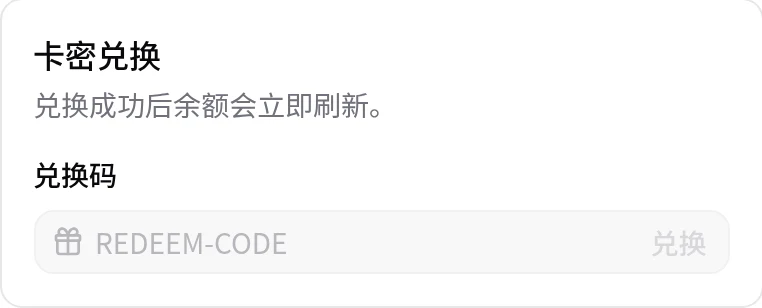
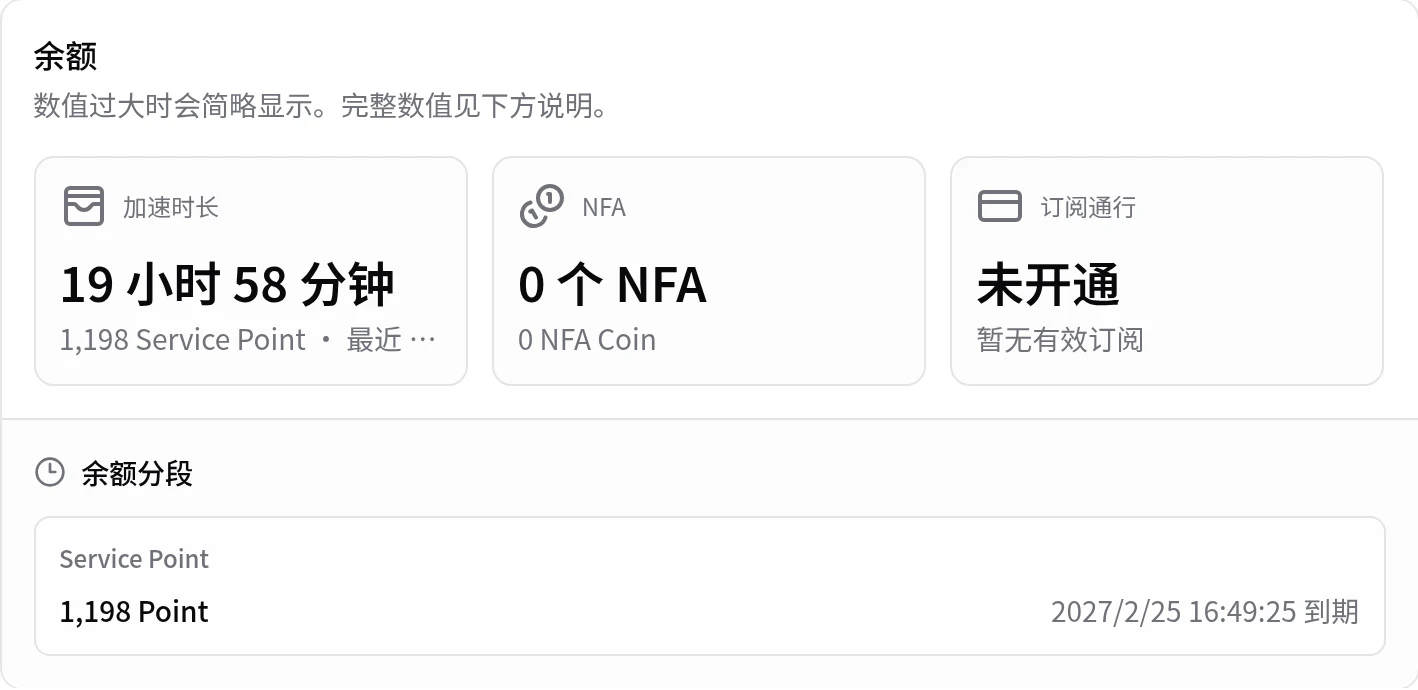
- After redemption succeeds, the balance refreshes immediately. The balance area shows the new acceleration time, subscription, or NFA Coin, with the expiry date.
You can also send this message to the bot in a private chat:
/redeem <code>To make a purchase, visit the FisProxy Shop. Use pay-as-you-go for occasional play. A subscription usually suits players who play almost every day. Before you buy a subscription, confirm that it covers the services you use. See Subscriptions, pay-as-you-go, and NFA Coin for the rules.
Step 4: Start acceleration
- Return to the Acceleration page.
- Select an available service in the service list. An unavailable service states the reason directly.
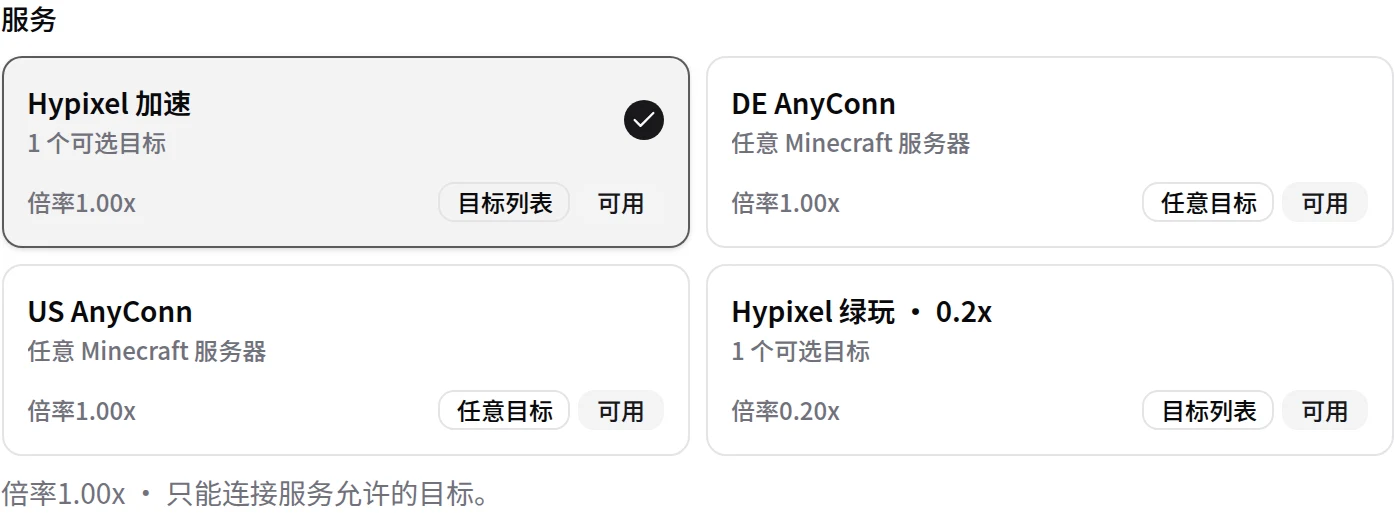
- Select a target server. For a service that supports any target, you can enter a custom
hostorhost:port. - Select an account source: your own account, or a platform NFA. The first platform NFA use is free.
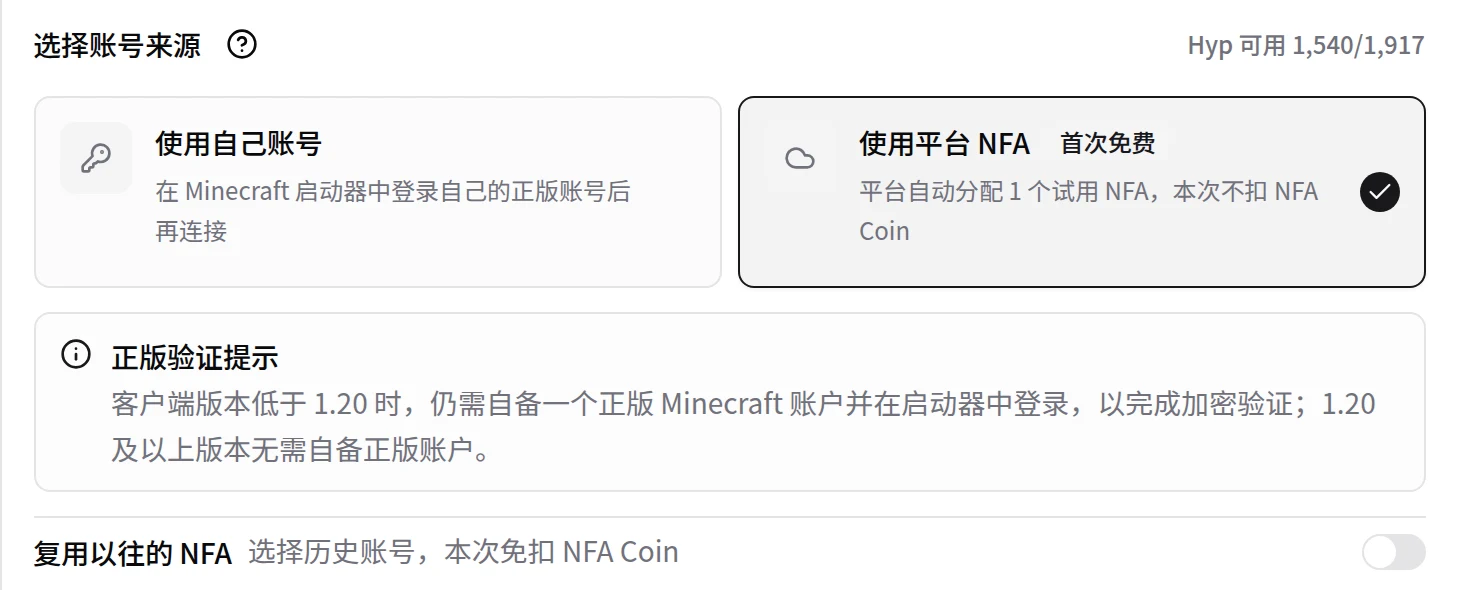
- Select Start, then wait until the progress completes.
Expected result: The session control panel shows the running state, and a list of entrance addresses appears below it.
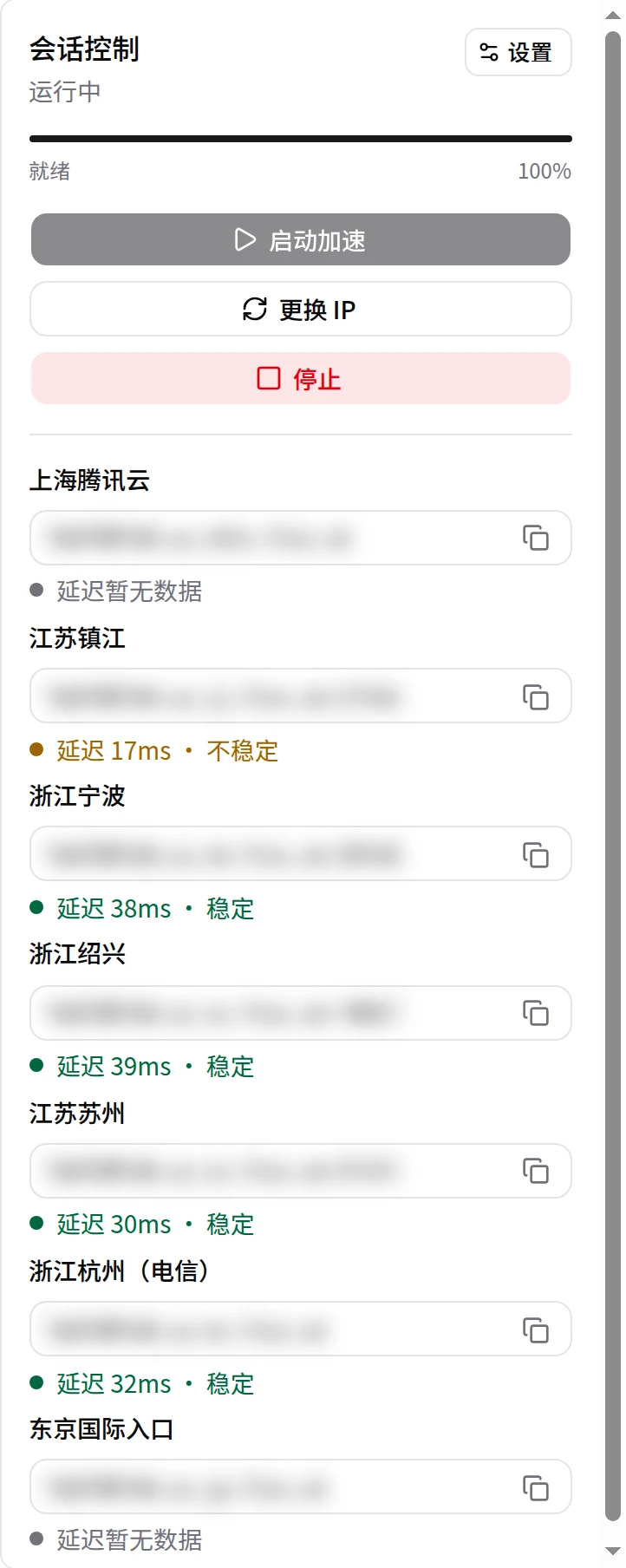
The start process takes some time. Keep the page open. Do not select Start repeatedly. See Platform AutoNFA for version requirements and cost rules.
Step 5: Join the game, then stop
- Copy one entrance address.
- In Minecraft Java Edition, add it as a server address and join the server.
- After you finish playing, return to the Acceleration page and select Stop.
- Wait until the status shows that the session is not running.
While a session runs, the status card shows the elapsed time and the target server:
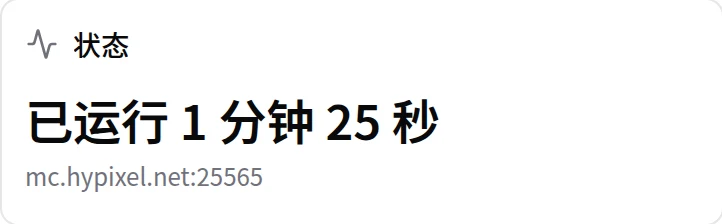
You can also send this message to the bot:
/stopTo help prevent forgotten sessions: about 10 minutes after you leave the server, the system sends a reminder. After about 20 minutes, it stops the service automatically. Billing continues during this wait. If you never join the game after starting, the service stops after about 35 minutes.
For two minutes after billing starts from a successful game connection, you may not be able to stop the service. Try again later. See Subscriptions, pay-as-you-go, and NFA Coin for billing details.
You can also use the bot
The bot also supports start, stop, IP changes, balance queries, and redemption. Command entry points can differ by platform. See Bot commands, or send /help to the bot.
Need help?
- If the page remains in one state, see Troubleshooting.
- To understand subscriptions and pay-as-you-go billing, see Subscriptions, pay-as-you-go, and NFA Coin.
- If you still need help, submit a ticket in My Tickets in the User Center, or contact us.
NEXT / KEEP EXPLORING
Continue to explore.